 Think2Unlock
מדריך התקנהSetup guide
ההתקנה נעשית פעם אחת, בטלפון של הילד, ולוקחת כחמש דקות. צריך אייפון עם iOS 17 ומעלה וקוד הורה שתזכרו. לא צריך חשבון ולא Family Sharing. You set it up once, on your child's phone, in about five minutes. You need an iPhone with iOS 17 or later and a parent PIN you will remember. No account and no Family Sharing needed.
- התקנהInstall
- הגדרה בטלפון של הילדSet it up on the child's phone
- נועלים את ההגדרה (חשוב)Protect the setup (important)
- איך זה נראה ביום-יוםWhat a day looks like
- אזור ההוריםThe parent area
- לוח ההורים מרחוק (רשות)Remote parent dashboard (optional)
1. מתקינים מה-App Store1. Install from the App Store
בטלפון של הילד, פותחים את הקישור או מחפשים "Think2Unlock" ב-App Store. האפליקציה חינמית. On your child's iPhone, open this link or search for "Think2Unlock" in the App Store. The app is free.


2. הגדרה בטלפון של הילד2. Set it up on the child's phone
שפה ושם הילדLanguage and the child's name
פותחים את Think2Unlock, בוחרים עברית או אנגלית ולוחצים "המשך". אחר כך כותבים את שם הילד או הילדה. השם מופיע במסך הנעילה. Open Think2Unlock, pick English or Hebrew and tap Continue. Then type your child's name; it appears on the lock screen.
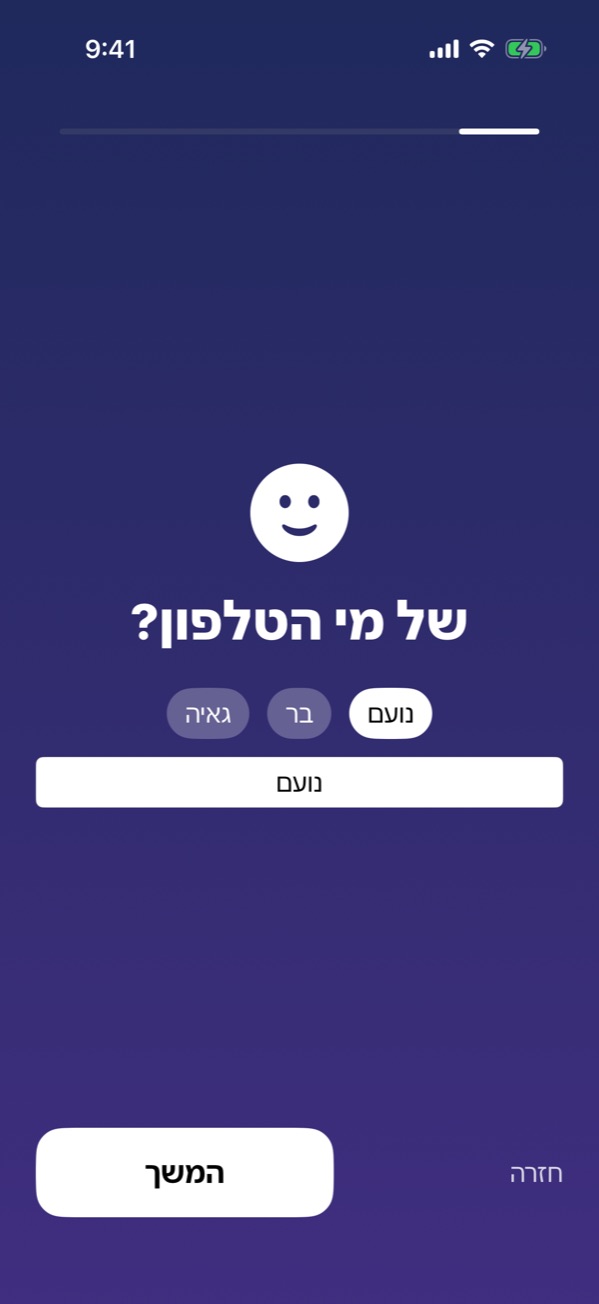
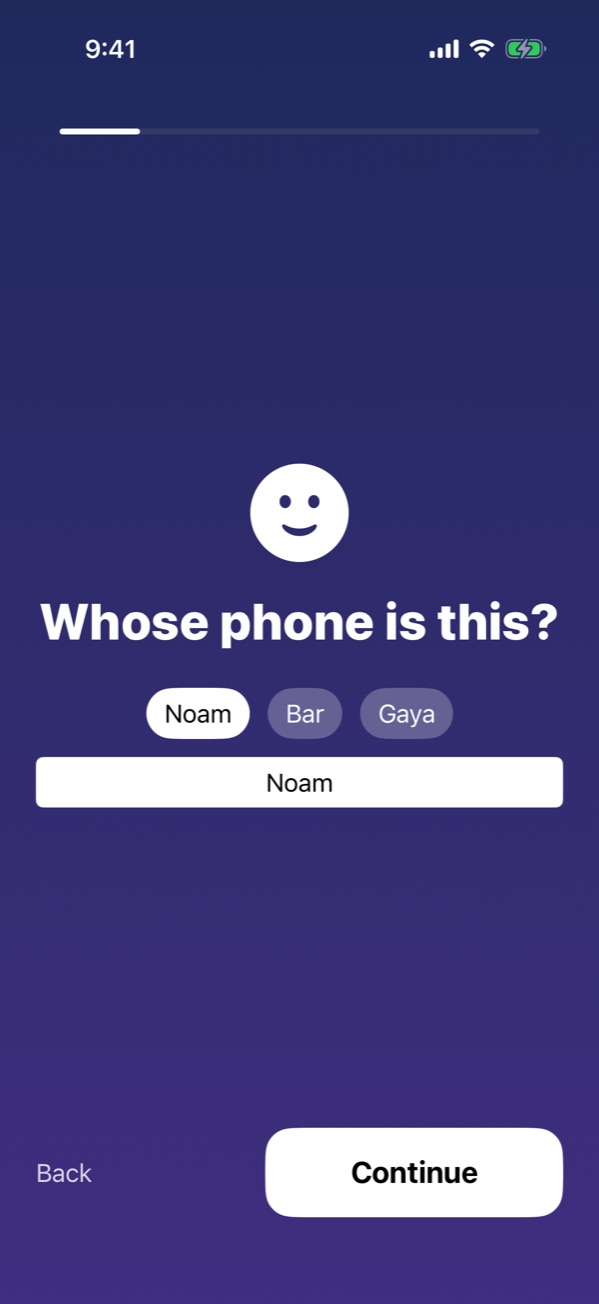
קוד הורהParent PIN
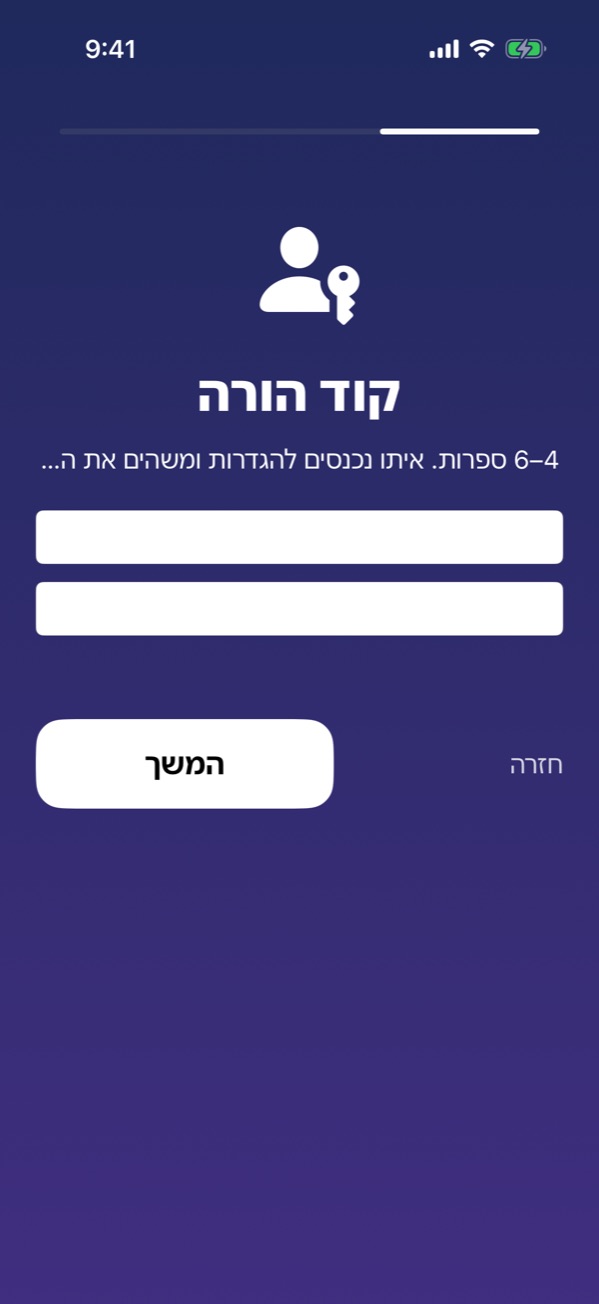
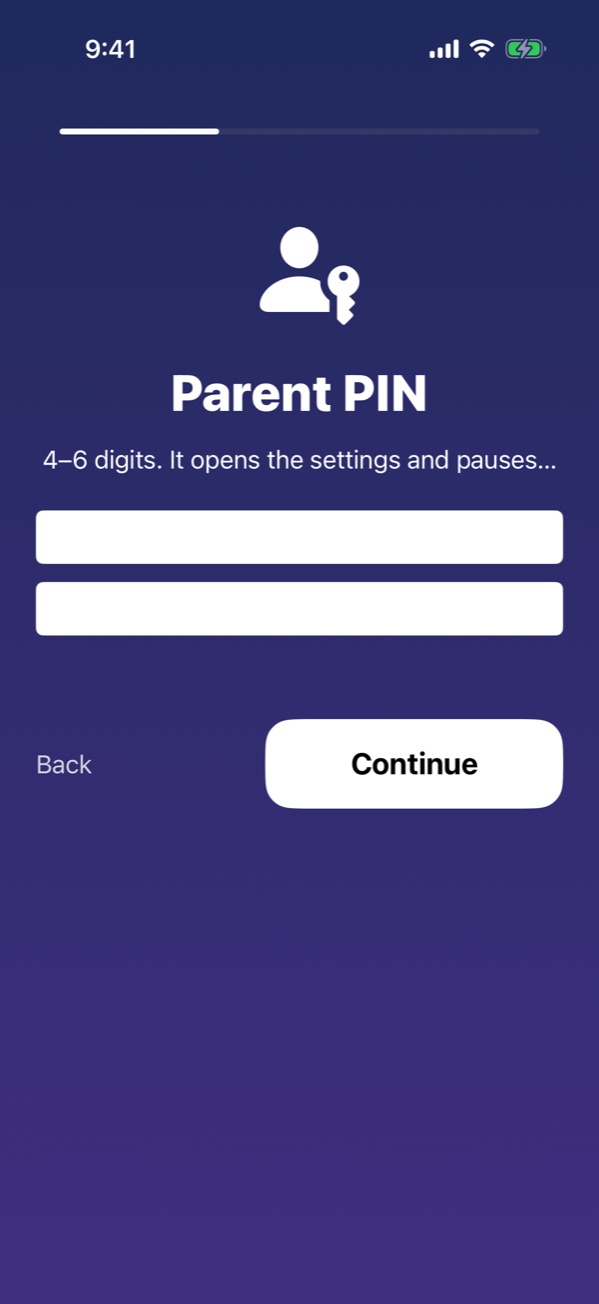
בוחרים קוד של 4–6 ספרות ומקלידים אותו פעמיים. הקוד פותח את ההגדרות ומשהה את הנעילה, אז לא משתפים אותו עם הילדים. שמרו אותו במקום בטוח: אם שוכחים אותו, צריך למחוק את האפליקציה ולהתקין מחדש. Choose a 4–6 digit PIN and type it twice. It opens the settings and pauses the lock, so don't share it with the kids. Keep it somewhere safe: if you forget it, you have to delete the app and install it again.
הרשאת זמן מסך והתראותScreen Time and notification permission
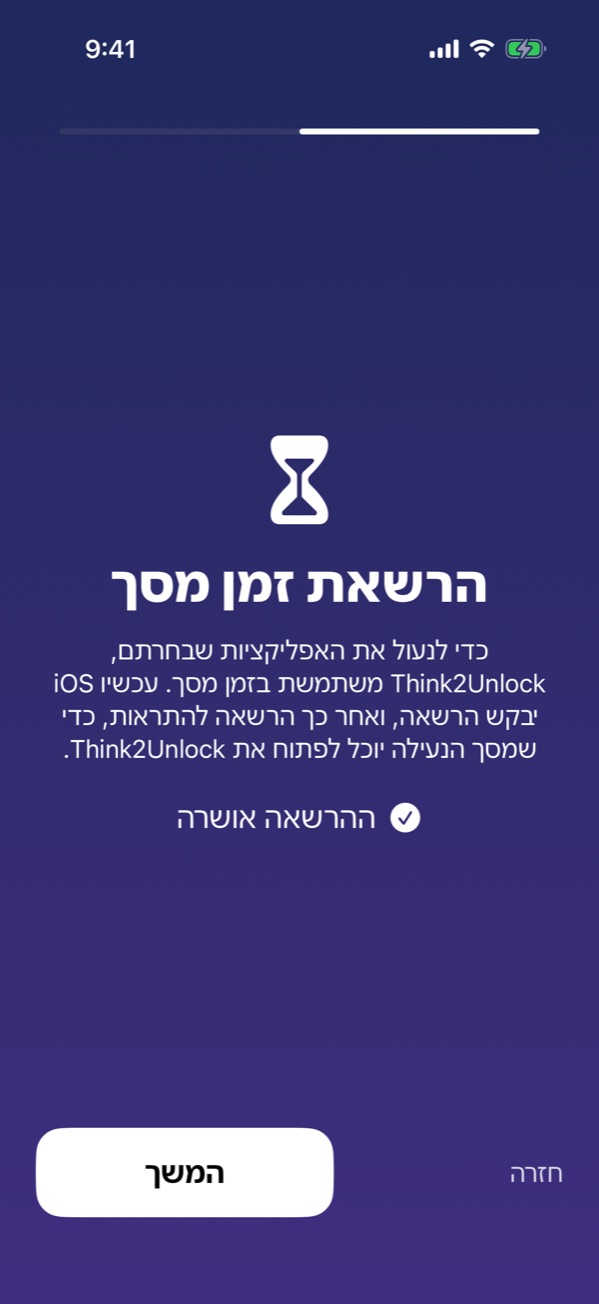
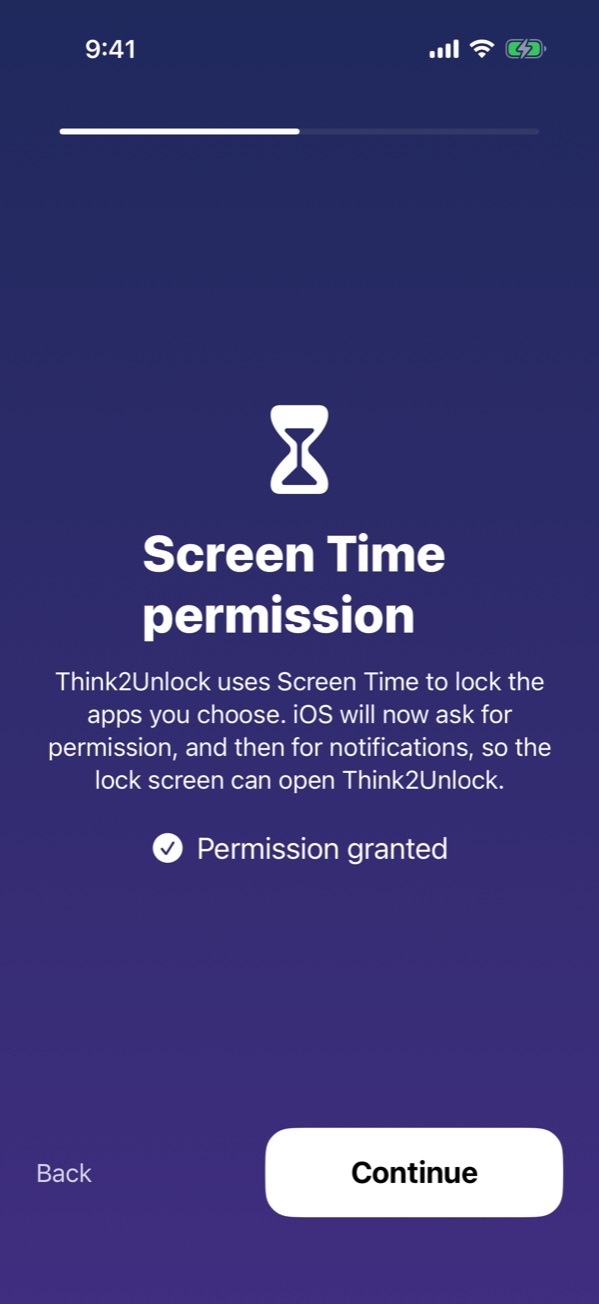
לוחצים "המשך" ומאשרים את חלון זמן המסך של iOS (ייתכן שתתבקשו לאמת עם Face ID או קוד הטלפון). זו הדרך היחידה שאפל מאפשרת לאפליקציה להציג מסך נעילה על אפליקציות אחרות. Think2Unlock לא רואה באילו אפליקציות הילד משתמש. Tap Continue and allow the iOS Screen Time dialog (you may be asked for Face ID or the phone's passcode). It is the only way Apple lets an app show a lock screen over other apps. Think2Unlock never sees which apps your child uses.
אחר כך מאשרים התראות: כפתור "לפתוח את Think2Unlock" שבמסך הנעילה משתמש בהתראה כדי להוביל לשאלות. Then allow notifications: the lock screen's "Open Think2Unlock" button uses a notification to lead to the questions.
מה נשאר פתוח תמידWhat always stays open
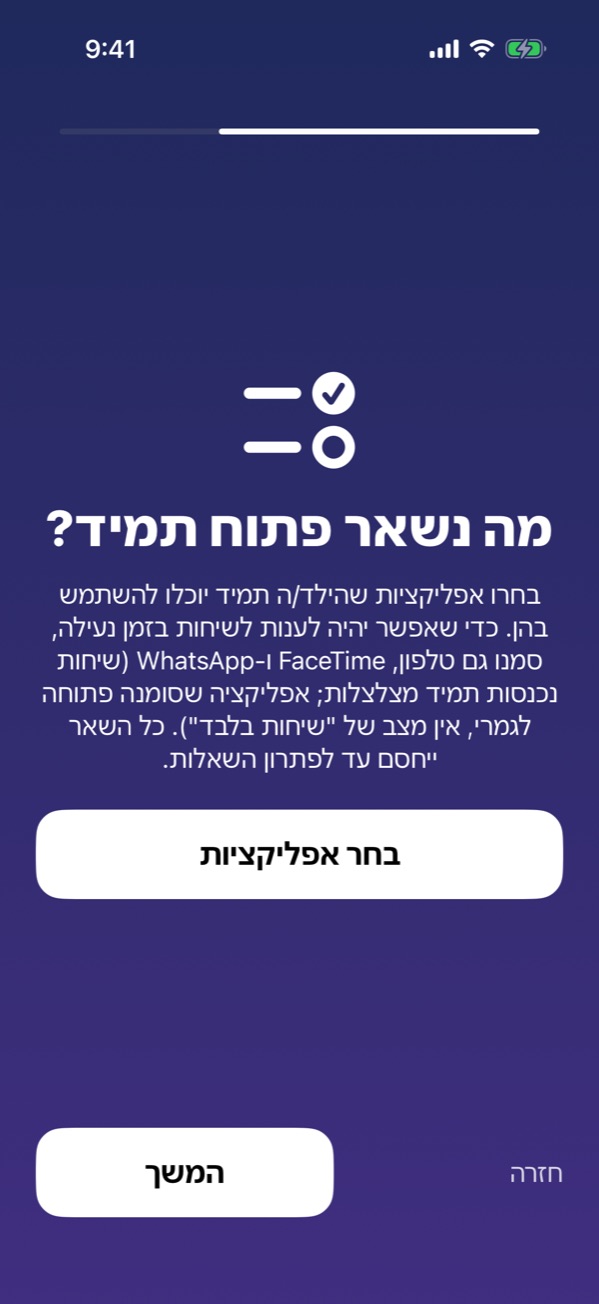
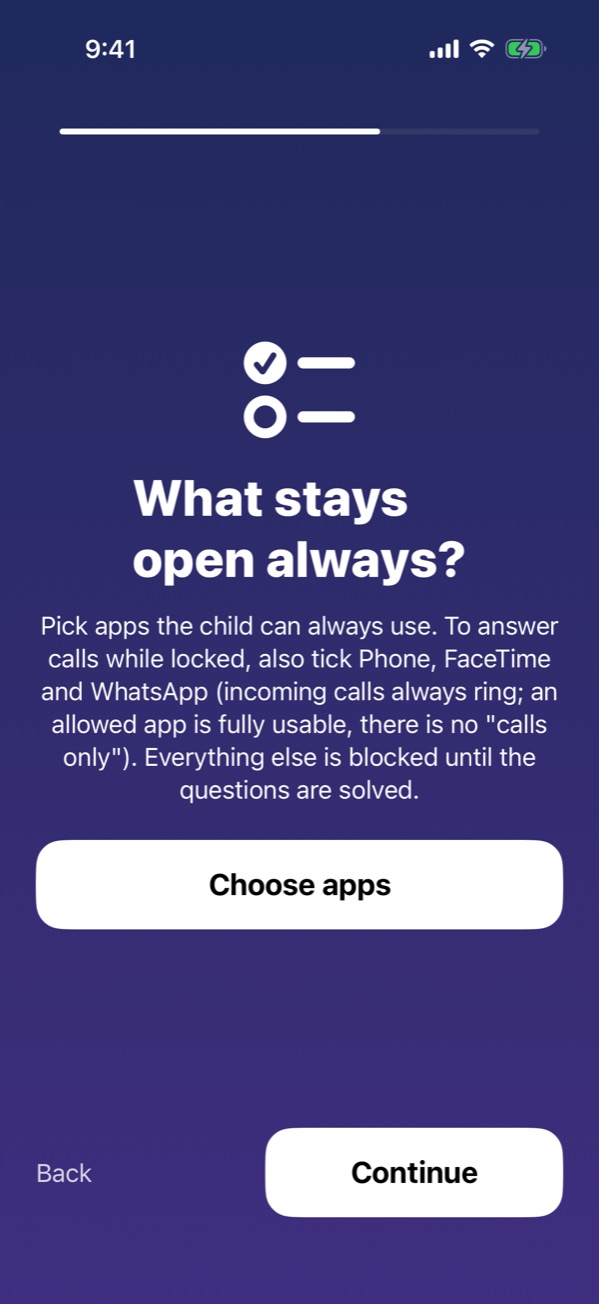
לוחצים "בחר אפליקציות" ומסמנים את מה שהילד צריך גם כשהטלפון נעול: טלפון, הודעות, WhatsApp, FaceTime, מפות, אפליקציות של בית הספר. בוחרים אפליקציות בודדות, לא קטגוריות שלמות. אפליקציה שסומנה פתוחה לגמרי; ב-iOS אין מצב של "שיחות בלבד". Tap "Choose apps" and tick what your child needs even while locked: Phone, Messages, WhatsApp, FaceTime, Maps, school apps. Pick individual apps, not whole categories. An allowed app is fully usable; iOS has no "calls only" mode.
לוח ההורים (רשות)Parent dashboard (optional)
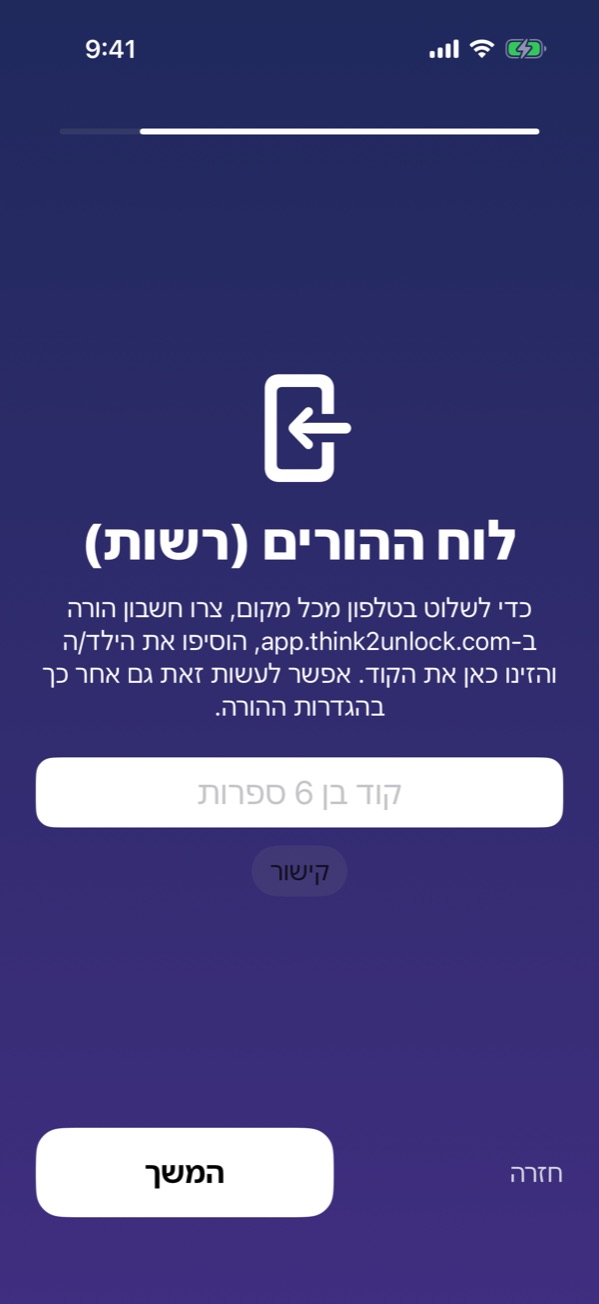
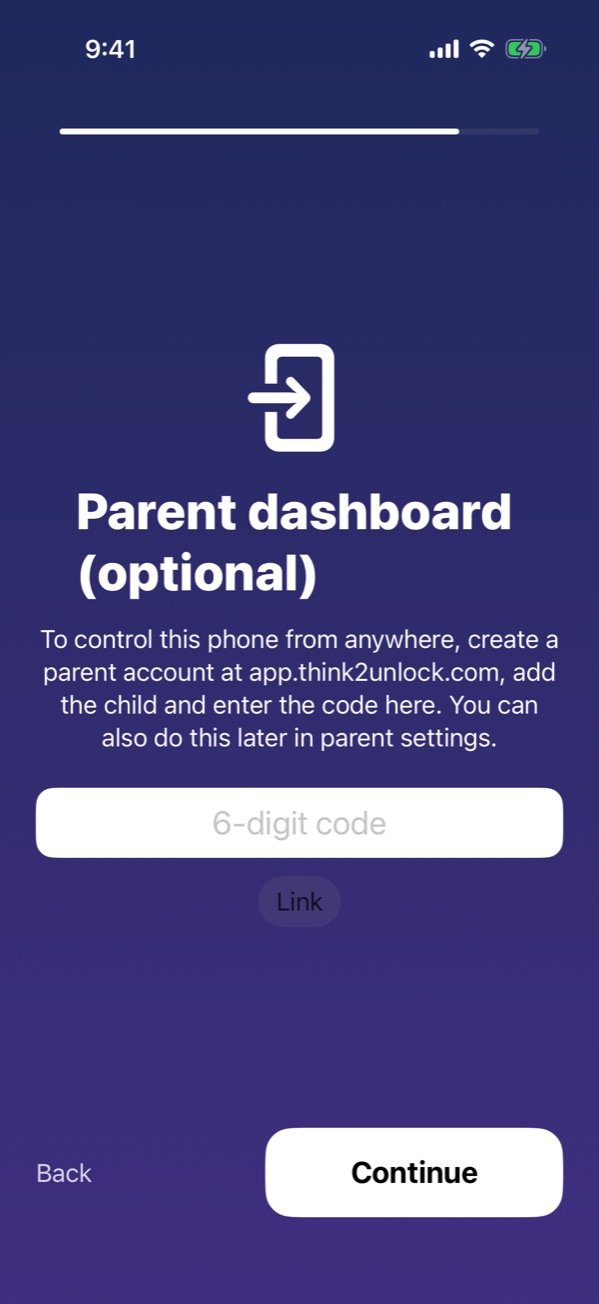
אפשר לדלג בלחיצה על "המשך". רוצים לשלוט בטלפון מרחוק? ההסבר בהמשך, ואפשר לקשר גם אחר כך מאזור ההורים. You can skip this with Continue. Want to control the phone remotely? See below; you can also link later from the parent area.
מתחיליםStart
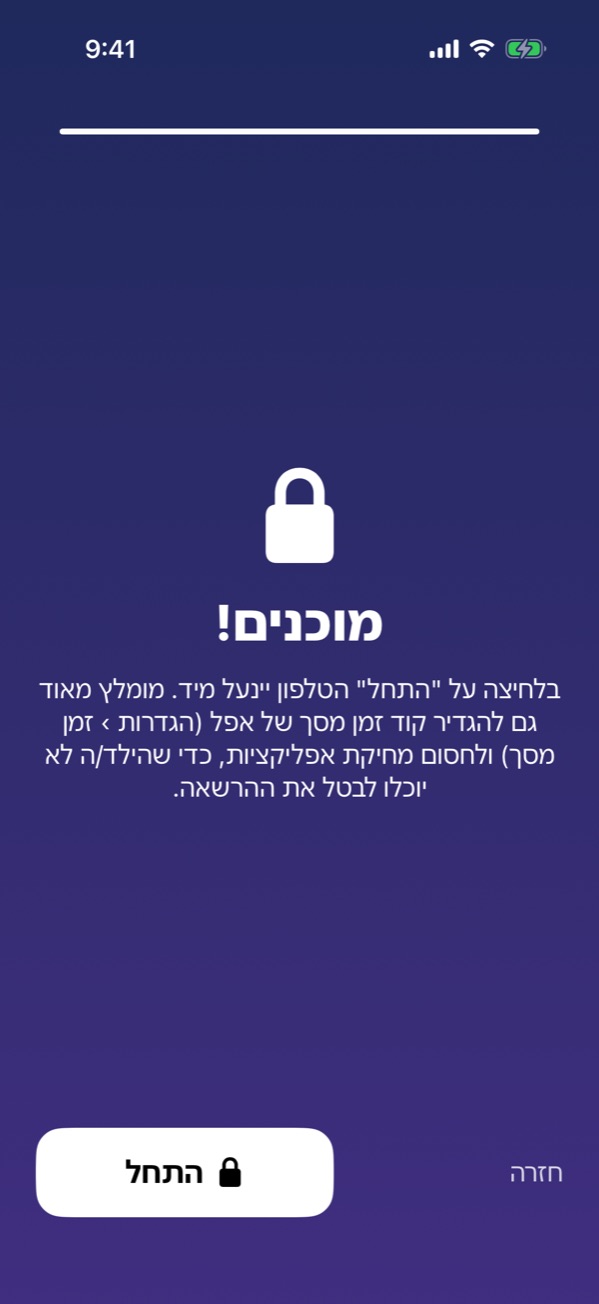
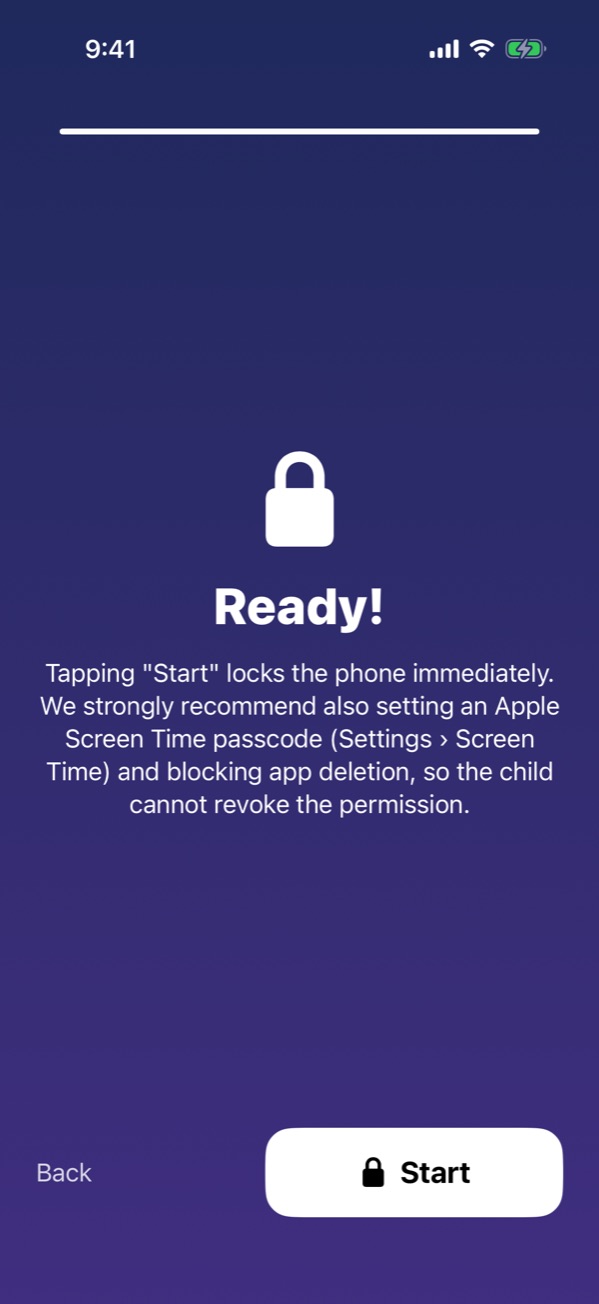
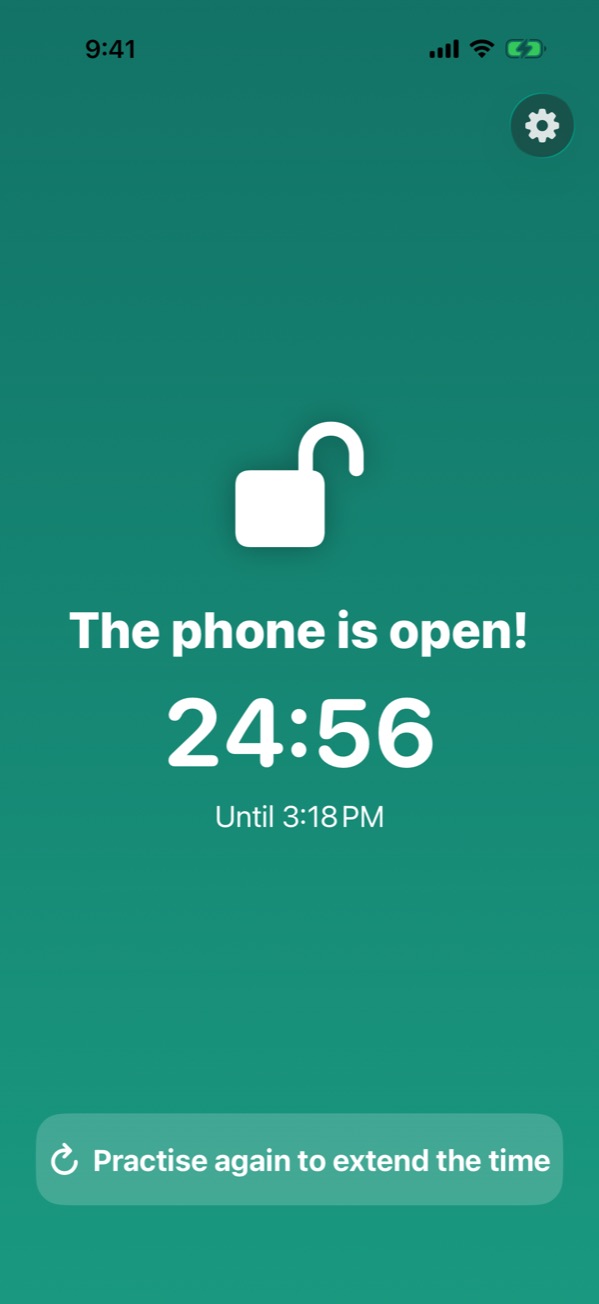
לוחצים "התחל". הטלפון ננעל מיד, ומעכשיו הוא נפתח ל-25 דקות אחרי כל 10 תשובות נכונות. Tap Start. The phone locks right away; from now on it opens for 25 minutes after every 10 correct answers.
3. נועלים את ההגדרה (חשוב)3. Protect the setup (important)
בלי הצעד הזה, ילד יכול לבטל את הרשאת זמן המסך או למחוק את האפליקציה מהגדרות iOS. בטלפון של הילד: Without this step a child can revoke the Screen Time permission or delete the app in iOS Settings. On your child's phone:
- פותחים הגדרות › זמן מסך.Open Settings › Screen Time.
- לוחצים השתמש בקוד זמן מסך ובוחרים קוד שהילד לא מכיר (אפשר אותו קוד כמו קוד ההורה).Tap Use Screen Time Passcode and choose a code your child doesn't know (it can be the same as the parent PIN).
- נכנסים להגבלות תוכן ופרטיות, מפעילים אותן, ובתוך רכישות ב-iTunes וב-App Store מגדירים מחיקת אפליקציות לאל תאפשר.Open Content & Privacy Restrictions, turn it on, and under iTunes & App Store Purchases set Deleting Apps to Don't Allow.
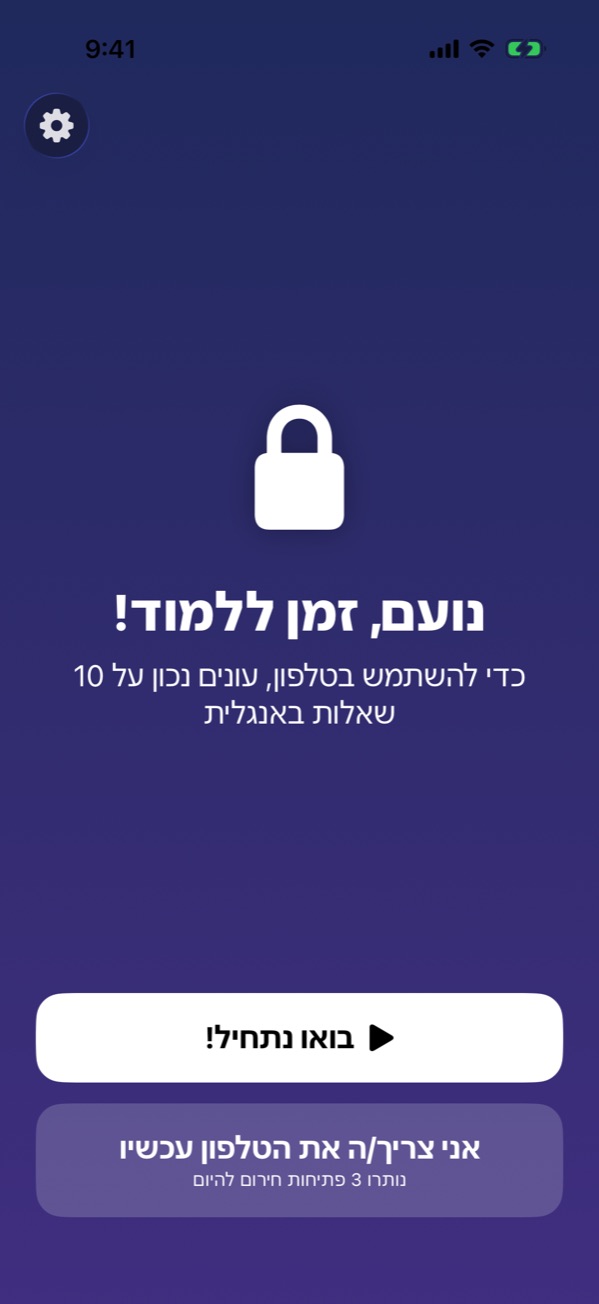
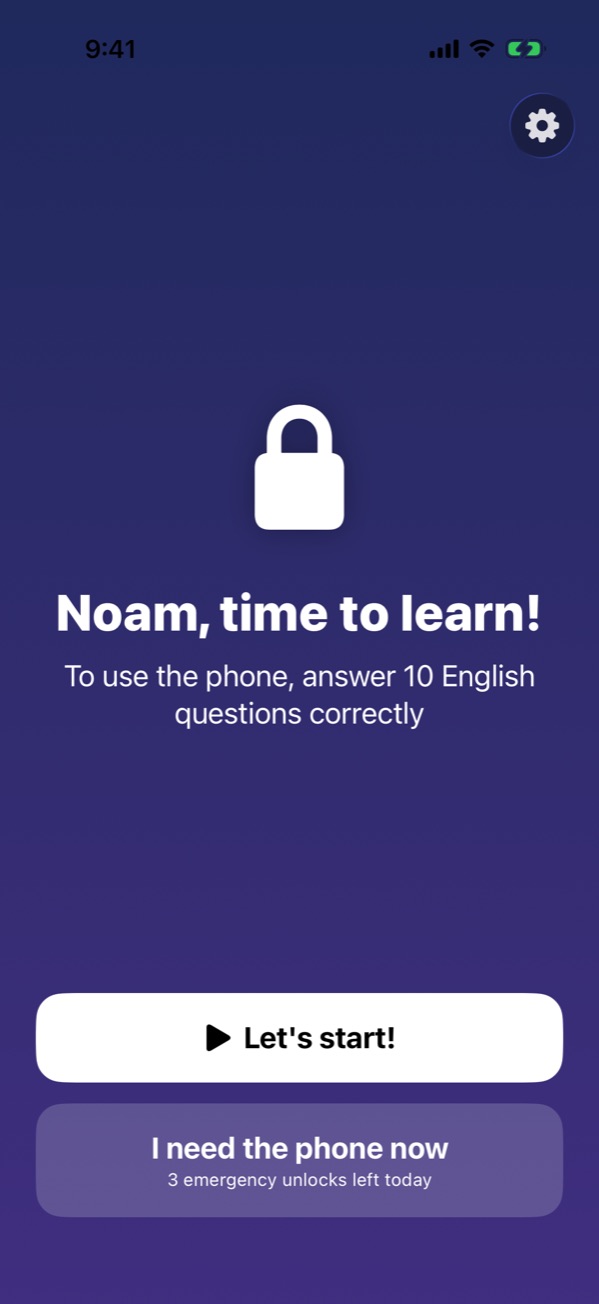
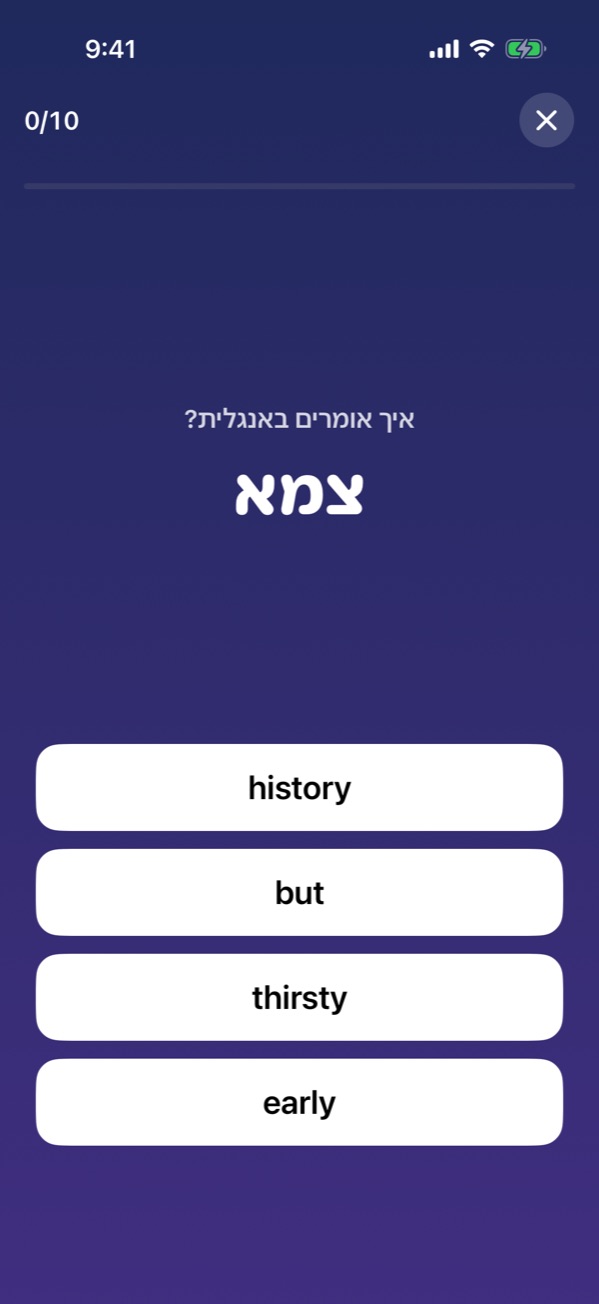
4. איך זה נראה ביום-יום4. What a day looks like
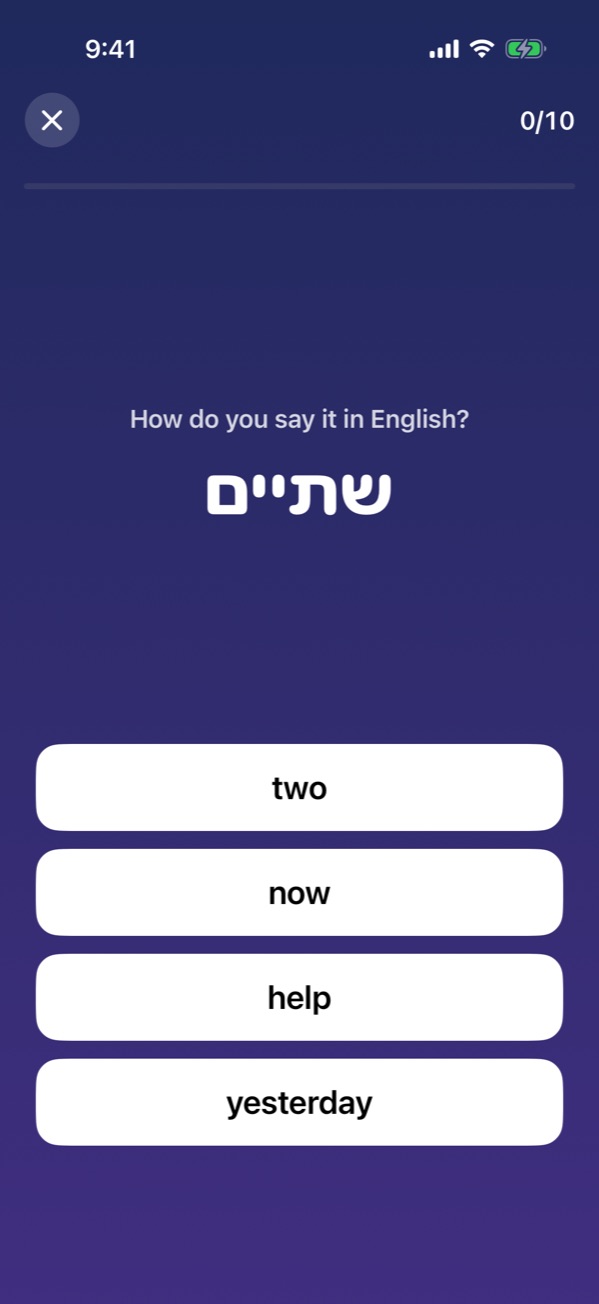
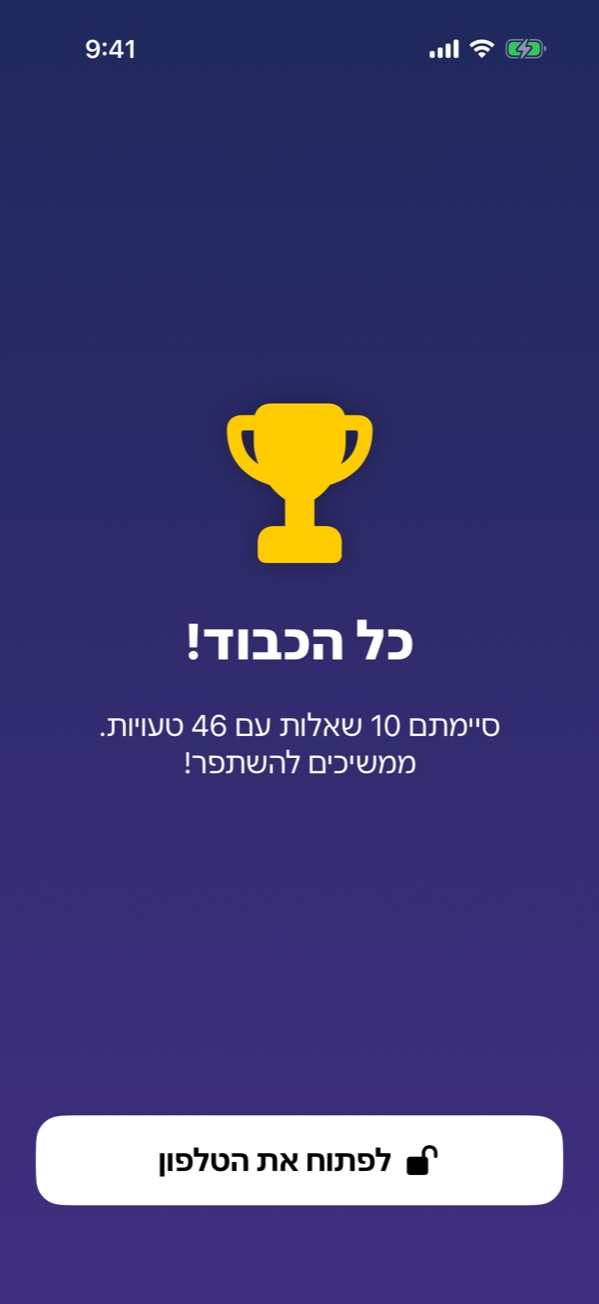
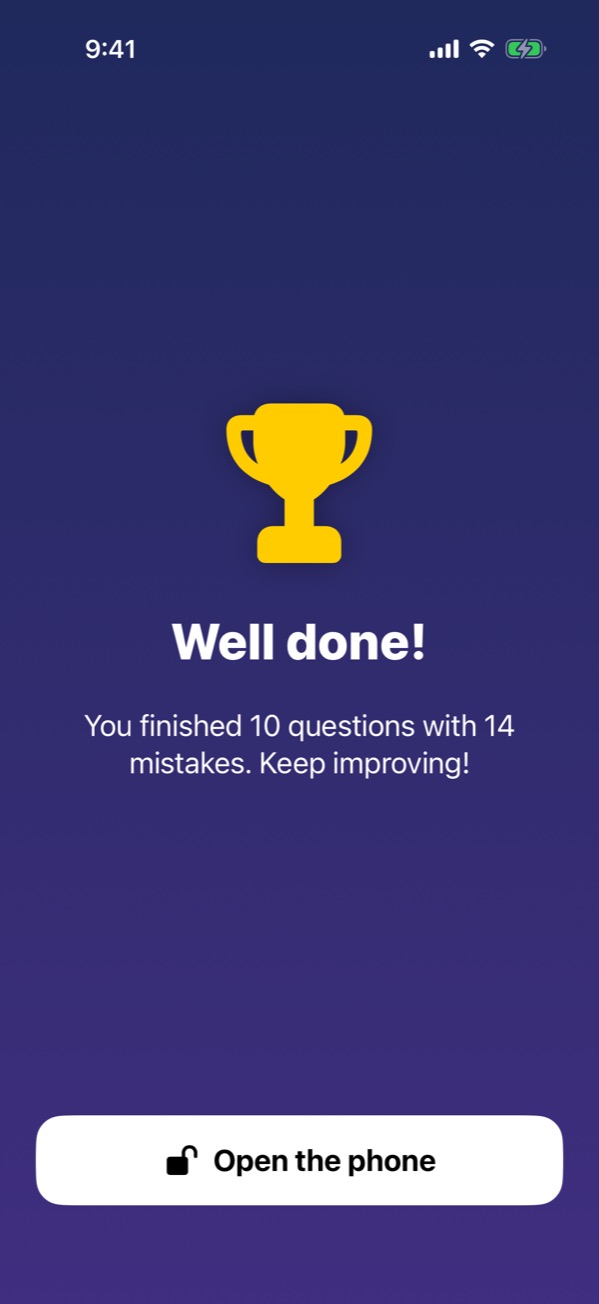
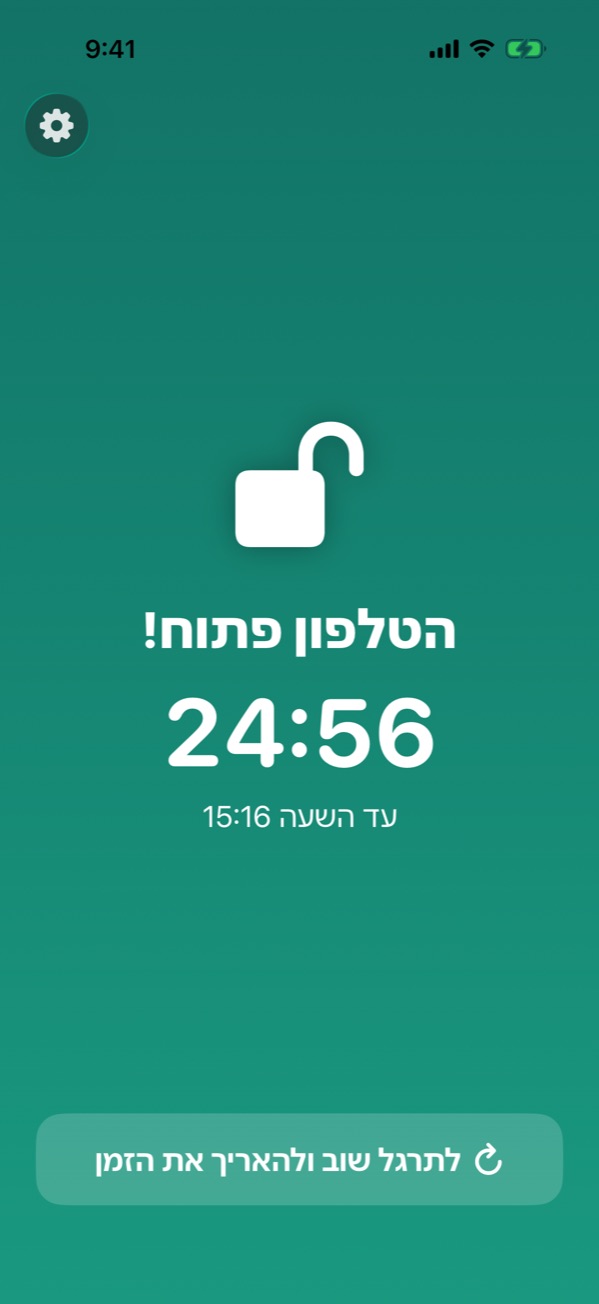
5. אזור ההורים5. The parent area
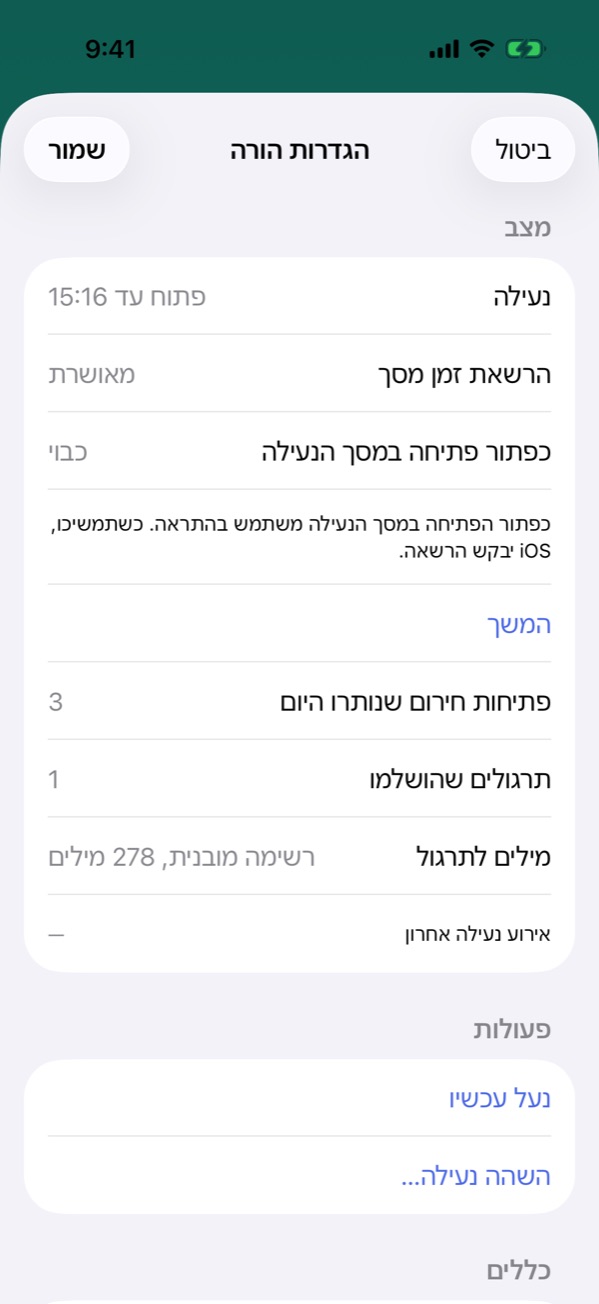
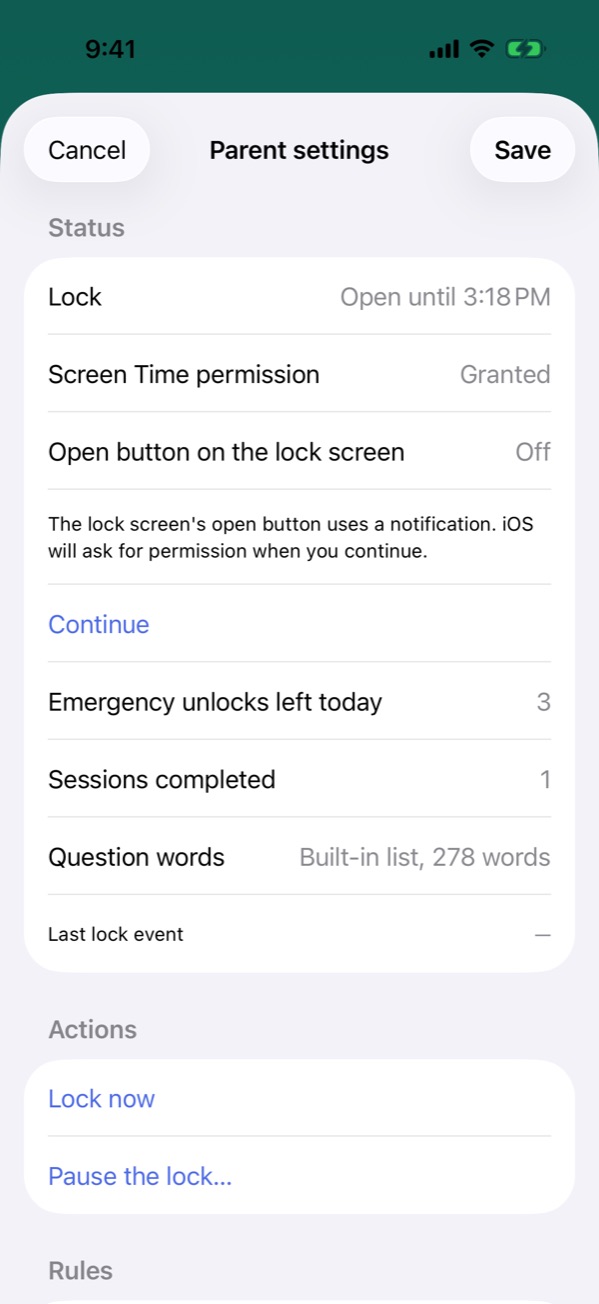
לוחצים על גלגל השיניים ומקלידים את קוד ההורה. שם קובעים כמה דקות הטלפון פתוח (15–240), כמה שאלות בכל סבב (1–30) וכמה פתיחות חירום ביום (0–20), משהים את הנעילה לכמה שעות, נועלים מיד, משנים את האפליקציות שתמיד פתוחות, ומקשרים ללוח ההורים. "איפוס האפליקציה" מסיר את הנעילה לגמרי. Tap the gear and enter the parent PIN. Set the open minutes (15–240), questions per round (1–30) and emergency unlocks per day (0–20), pause the lock for a few hours, lock now, change the always-open apps, and link the dashboard. "Reset app" removes the lock completely.
6. לוח ההורים מרחוק (רשות)6. Remote parent dashboard (optional)
רוצים לפתוח או לנעול את הטלפון של הילד מהטלפון שלכם? לוח ההורים חינמי ועובד מכל דפדפן. Want to open or lock your child's phone from your own phone? The dashboard is free and works in any browser.
- נרשמים ב-app.think2unlock.com (בטלפון או במחשב שלכם).Sign up at app.think2unlock.com (on your own phone or computer).
- מוסיפים ילד ומקבלים קוד בן 6 ספרות (בתוקף 24 שעות).Add a child and get a 6-digit code (valid for 24 hours).
- בטלפון של הילד: גלגל השיניים › קוד הורה › לוח הורים › מקלידים את הקוד › קישור.On the child's phone: gear › parent PIN › Parent dashboard › enter the code › Link.
מעכשיו אפשר לפתוח את הטלפון ל-15–60 דקות, לנעול, להשהות, לשנות כללים, לבחור חבילות שאלות לפי כיתה ונושא, ולראות התקדמות: כמה תרגולים, אחוז תשובות נכונות ואילו מילים כדאי לתרגל. הפקודות מגיעות לטלפון כשהוא מסתנכרן, בדרך כלל כש-Think2Unlock נפתחת. From then on you can open the phone for 15–60 minutes, lock it, pause it, change the rules, pick question packs by grade and topic, and follow progress: quizzes, correct-answer rate and the words to practise. Commands reach the phone when it syncs, usually when Think2Unlock is opened.
יש שאלה?Questions?
בדף התמיכה יש תשובות לשאלות נפוצות, ואפשר לכתוב לנו ל-[email protected]. The support page answers common questions, or write to [email protected].